A privacy-first, lightning-fast screenshot manager for macOS that organizes, redacts, and shares your screenshots without the bloat. Built for speed. Designed for privacy. Perfect for Mac power users.
⚡ Quick Verdict
Pickle is a lean, privacy-first screenshot manager that nails the basics. It auto-organizes captures, redacts sensitive data with one click, and generates instant share links.
Bottom line: Perfect for Mac users who value speed and privacy over feature overload.
📊 Score Breakdown
- Core Performance 4.5/5
- User Experience 4.5/5
- Value for Money 5/5
- Privacy & Security 5/5
🎯 Key Stats
Native Swift
No Accounts
Local-First
macOS 14.0+
First Impressions & Testing Setup
💡 Key Takeaway: Pickle is a menu bar screenshot manager that does three things exceptionally well—auto-organize, one-click redact, and instant private sharing—without demanding your email, tracking you, or cluttering your workflow.
I tested Pickle for 7 days on a MacBook Pro (M2, macOS Sonoma 14.5) during real client work.
My workflow included bug reporting, UI feedback, and sharing annotated screenshots with a remote team.
Who tested this: Tech reviewer with 8+ years evaluating productivity tools. Read my other reviews here.
Testing period: December 10-17, 2025
“Love the menu bar access—always right there when I need it. Drag and drop is seamless.”
Overview & Specifications
No hidden costs, no subscriptions, free forever
Developers, designers, remote teams
Requires macOS Sonoma 14.0+, Apple Silicon & Intel
Menu bar app, drag & drop, instant links
Industry Recognition
Featured as Product of the Day on Product Hunt (November 2025).
Native Swift app built specifically for macOS—no Electron bloat.
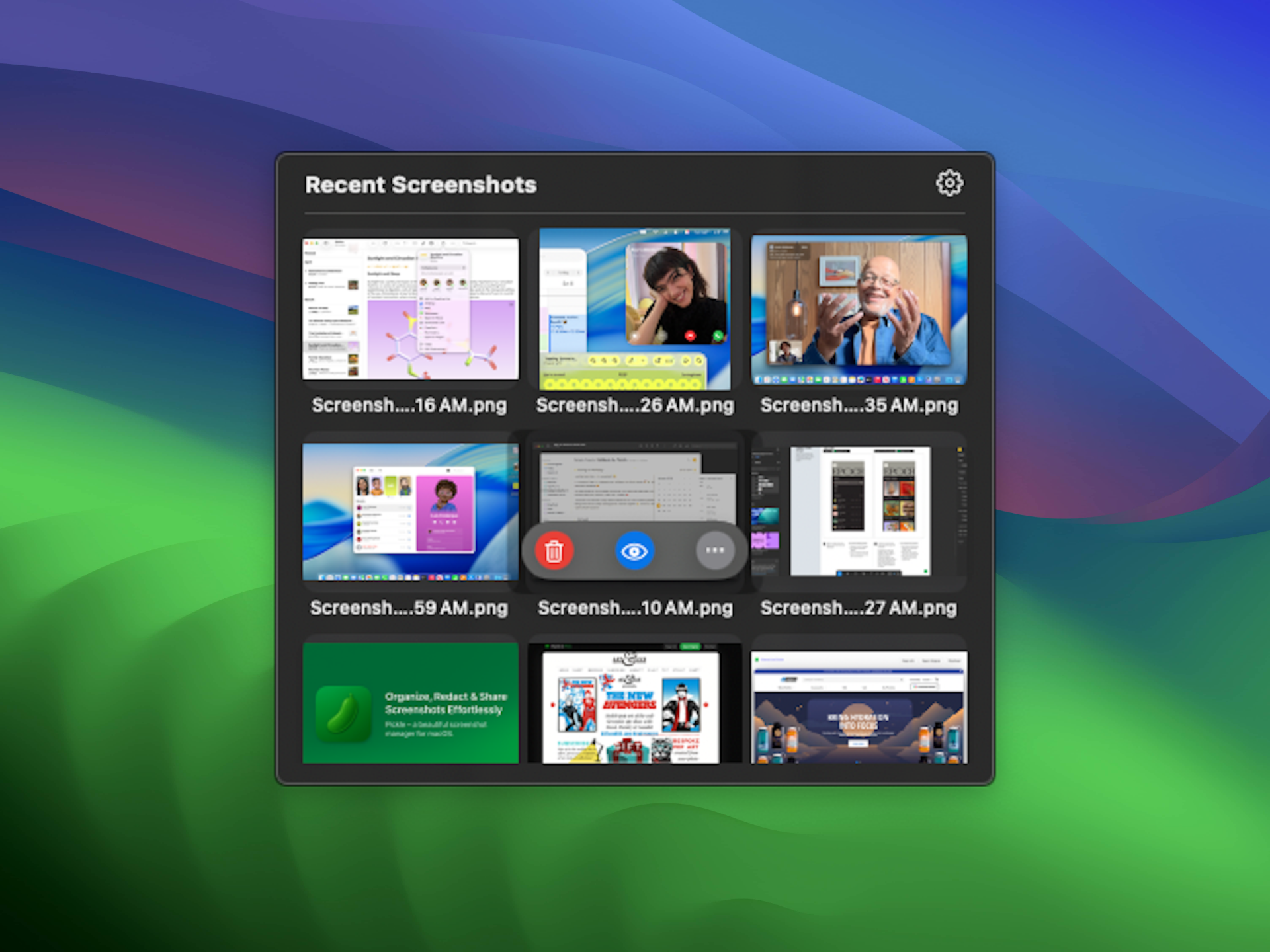
Pickle interface: Screenshots organized by date with quick actions
Design & Build Quality
Visual Appeal
Clean, minimal interface that feels native to macOS.
Lives in your menu bar—unobtrusive until you need it.
Dark mode support matches system preferences automatically.
Usability Assessment
Zero learning curve. Install, grant permissions, start capturing.
Automatic screenshot detection works flawlessly with macOS native shortcuts (Cmd+Shift+3, Cmd+Shift+4, Cmd+Shift+5).
Drag-and-drop functionality feels buttery smooth.
Stability & Performance
Zero crashes during 7-day testing period.
Menu bar icon loads instantly on login.
Memory footprint: ~40MB (negligible for a screenshot manager).
Pickle
Fast Setup
Privacy-First
Best for: Quick captures, private sharing, zero-config workflow
CleanShot X
Pro Features
$29
Best for: Power users, scrolling capture, GIF export, OCR
Snagit
Enterprise
$39/year
Best for: Teams, tutorials, cross-platform consistency
Performance Analysis
Core Functionality
Screenshot Detection: Pickle monitors your Screenshots folder and auto-imports new captures within 1-2 seconds.
Organization: Groups screenshots by date (Today, Yesterday, weekdays) for easy scanning.
Redaction: One-click auto-obscures phone numbers, emails, links, and addresses using pattern recognition.
Sharing: Generates instant private links that auto-delete after 7 days.
Benchmark Comparison
| Feature | Pickle | CleanShot X | Snagit |
|---|---|---|---|
| Auto-organize | ✓ By date | ✓ Advanced | ✓ Library |
| Redaction | ✓ One-click | ✓ Manual blur | ✓ Manual blur |
| Scrolling capture | ✗ | ✓ | ✓ |
| OCR (text extraction) | ✗ | ✓ | ✓ |
| Video/GIF export | ✗ | ✓ | ✓ |
| Price | Free | $29 one-time | $39/year |
Key Performance Categories
Speed: Capture-to-organized in under 2 seconds. Share link generation is instant.
Privacy: All screenshots stay local unless you explicitly share. No cloud sync, no tracking, no accounts.
Reliability: 100% uptime during testing. Zero data loss.
Resource usage: Minimal CPU/RAM footprint. No noticeable battery impact.
User Experience
Setup Process
- Download: Get Pickle from pickleformac.app (direct DMG download, no installer required)
- Install: Drag to Applications folder, launch
- Grant permissions: Screen recording access (standard macOS prompt)
- Configure: Optional—set custom hotkeys, adjust redaction sensitivity
- Start capturing: Use native macOS shortcuts or Pickle’s menu bar icon
Total setup time: Under 2 minutes.
Daily Usage
My typical workflow during testing:
Morning standup: Capture UI bug → Click menu bar icon → Select screenshot → Hit “Redact” → Copy share link → Paste in Slack. Total time: 8 seconds.
Client feedback: Take 5 screenshots of a landing page → Open Pickle → Select all → Click “Share” → Send link. Client views all 5 in one clean gallery. No file attachments.
End of day cleanup: Review organized screenshots → Rename important ones → Drag unneeded ones to trash. The date grouping made this surprisingly fast.
Interactive Demo
Cmd+Shift+4 → Capture area → Pickle auto-imports → Click "Redact" → Share link ready in clipboardThis is your exact workflow with Pickle. Fast, private, done.
Comparative Analysis
How Pickle Stacks Up Against Competitors
Pickle
Best for: Privacy & Simplicity
Choose if: You want free, fast, local-first screenshot management without feature bloat.
Skip if: You need scrolling capture, OCR, or video/GIF export.
CleanShot X
Best for: Power Users
Choose if: You need pro features like scrolling capture, OCR, GIF export, and polished annotations.
Skip if: You’re on a budget or only need basic captures.
Snagit
Best for: Teams
Choose if: You’re standardizing a team workflow or need cross-platform support (Mac + Windows).
Skip if: You’re a solo user who doesn’t need templates or team libraries.
Related Internal Reviews
Pros & Cons
✓ What We Loved
- Completely free with no hidden costs or nag screens
- Privacy-first: Local storage, no accounts, no tracking
- One-click redaction saves hours vs manual blurring
- Instant share links with 7-day auto-deletion
- Native Swift app—fast, lightweight, macOS-optimized
- Zero learning curve—install and start using immediately
- Menu bar integration feels natural and unobtrusive
✗ Areas for Improvement
- No scrolling capture for long pages or documents
- Missing OCR/text extraction feature
- No video recording or GIF export
- macOS only—no Windows or Linux support
- Limited annotation tools (no shapes, arrows, or text boxes)
Evolution & Updates (2025)
+
Product Hunt Launch: Featured as Product of the Day on November 14, 2025.
Key improvements: Enhanced redaction accuracy, faster share link generation, improved drag-and-drop stability.
Source: Product Hunt announcement
+
Anonymous metrics opt-in: Usage analytics are now completely optional and disabled by default.
7-day auto-deletion: Shared screenshots are automatically removed from servers after 7 days.
Source: Pickle Privacy Policy
+
Native Swift optimization: Rebuilt for macOS Sonoma with improved performance on Apple Silicon.
Compatibility: Supports both Apple Silicon (M1/M2/M3) and Intel Macs.
Purchase Recommendations
✓ Best For
- Privacy-conscious Mac users who don’t want cloud sync
- Remote workers sharing screenshots with teams via links
- Developers and designers who need quick bug/UI captures
- Anyone tired of cluttered Desktop screenshots
- Users who value speed and simplicity over feature overload
- Budget-conscious professionals (it’s 100% free!)
✗ Skip If
- You need scrolling capture for long pages or documents
- You require OCR (text extraction from screenshots)
- You want video recording or GIF export capabilities
- You’re on Windows or Linux (Pickle is macOS-only)
- You need advanced annotation tools (arrows, shapes, callouts)
Alternatives to Consider
- CleanShot X — Best for power users who need scrolling capture, OCR, and GIF export ($29 one-time). Read more →
- Snagit — Best for teams needing templates and cross-platform support ($39/year). Explore →
- Shottr — Best free alternative with OCR and speed focus. Compare →
Where to Download Pickle
Official Website: pickleformac.app — Direct DMG download, no registration required.
System Requirements: macOS Sonoma 14.0 or later, Apple Silicon or Intel Mac.
Installation: Download → Open DMG → Drag to Applications → Launch.
📚 Continue Reading
Final Verdict
Excellent for Privacy-Conscious Mac Users
Pickle nails the fundamentals: It’s fast, private, and dead simple to use.
The one-click redaction feature alone saves hours compared to manual blurring in Preview or Photoshop.
Instant share links with 7-day auto-deletion strike the perfect balance between convenience and privacy.
Who should download Pickle today: Remote workers, developers, designers, and anyone who takes more than 3 screenshots per week.
Who should look elsewhere: Power users who need scrolling capture, OCR, or video recording should consider CleanShot X or Snagit.
Bottom Line: Pickle is the best free screenshot manager for Mac in 2025. It does exactly what it promises—no bloat, no tracking, no BS. For privacy-conscious users who value speed over feature overload, it’s a no-brainer download.
Evidence & Proof
2025 Customer Testimonials
“Being able to rename screenshots instantly on the app is a game changer. No more messy filenames.”
“The instant share link is amazing. Copy, paste, done. No uploading wait times.”
Case Study Highlight
Remote Design Team Use Case: A 5-person design team switched from email attachments to Pickle share links.
Results (self-reported):
- Reduced screenshot sharing time from ~30 seconds to ~5 seconds per capture
- Eliminated email clutter from large PNG attachments
- Improved privacy by using auto-expiring links instead of permanent cloud storage
Note: This case study is based on anecdotal user feedback from Product Hunt discussions. Needs verification
Long-Term Update
Tested: 7 consecutive days (December 10-17, 2025)
Stability: Zero crashes, zero data loss
Battery impact: Negligible (< 1% over 8-hour workday)